Overview
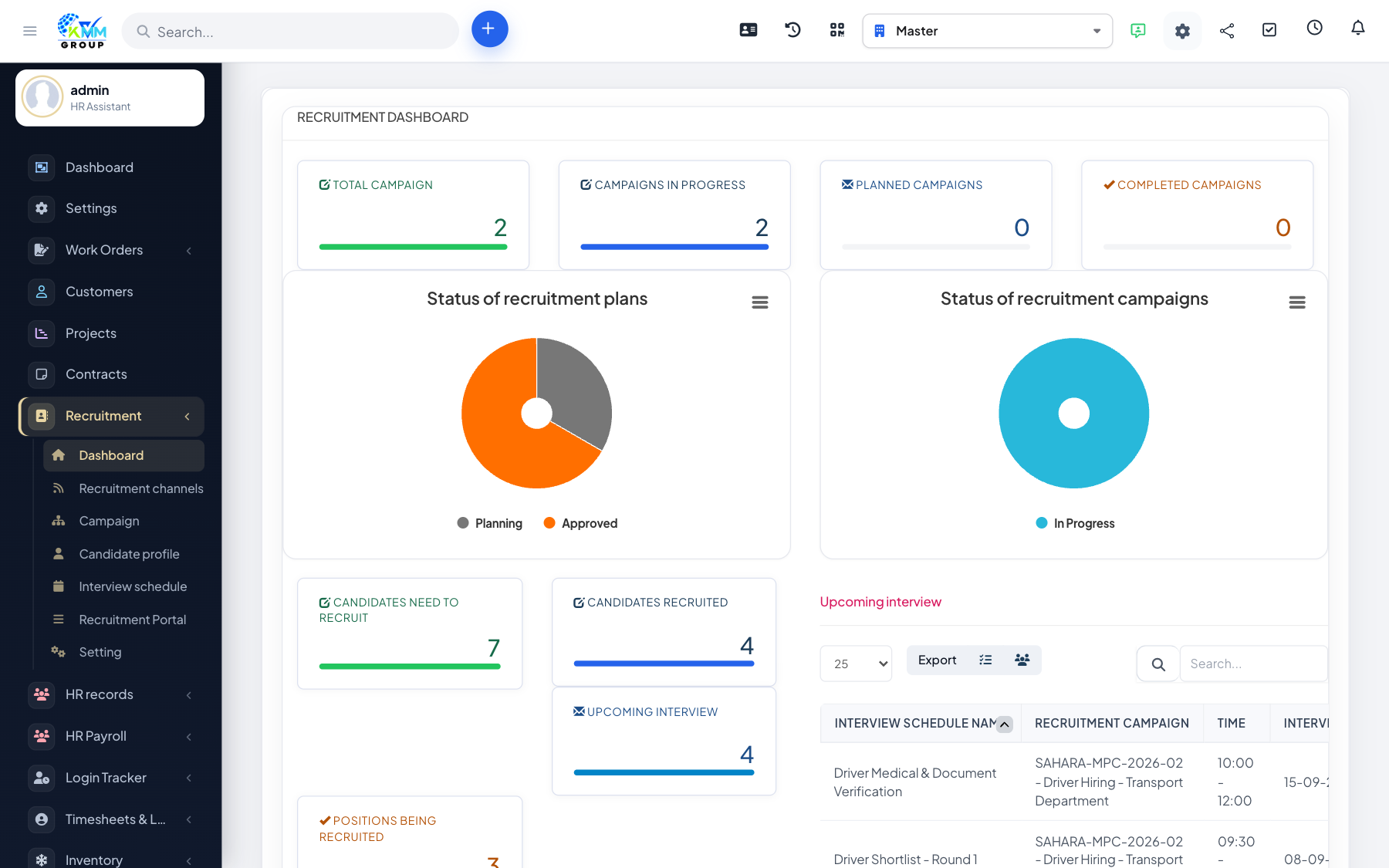
The Recruitment module manages your entire hiring journey inside the KMMV dashboard — from planning a vacancy and advertising it, through collecting and screening candidates, scheduling and scoring interviews, right up to hiring someone and moving their record into HR. Everything about a job opening and its applicants lives in one place, so your team always knows where each candidate stands.
Where to find it
Open Recruitment in the left sidebar. The sub-menu contains Dashboard, Campaign, Candidate Profile, Interview Schedule, Recruitment Channel, Recruitment Portal and Settings. A Proposal (plan) item also appears when plan-based campaigns are enabled in Settings.
Key terms
- Campaign — a single job opening that collects candidates.
- Candidate — a person who has applied or been added for a role.
- Channel — where a candidate came from (e.g. referral, LinkedIn) and can include a public application form.
- Pipeline — the stages a candidate moves through, from new to hired.
Recommended setup order
- Configure Recruitment > Settings: job positions, skills, industries and number prefixes.
- Build your evaluation criteria and evaluation forms so interviews are scored consistently.
- Create a campaign (job opening), optionally starting from a recruitment plan.
- Add or import candidates and move them through the pipeline.
- Schedule interviews, evaluate applicants, and transfer hired candidates to HR.
Good to know
- Access to each screen is controlled by the Recruitment staff permissions (View / Create / Edit / Delete) under Setup > Staff > Roles.
- You can start simple — a campaign plus candidates — and add channels, portal and evaluations later.