Overview
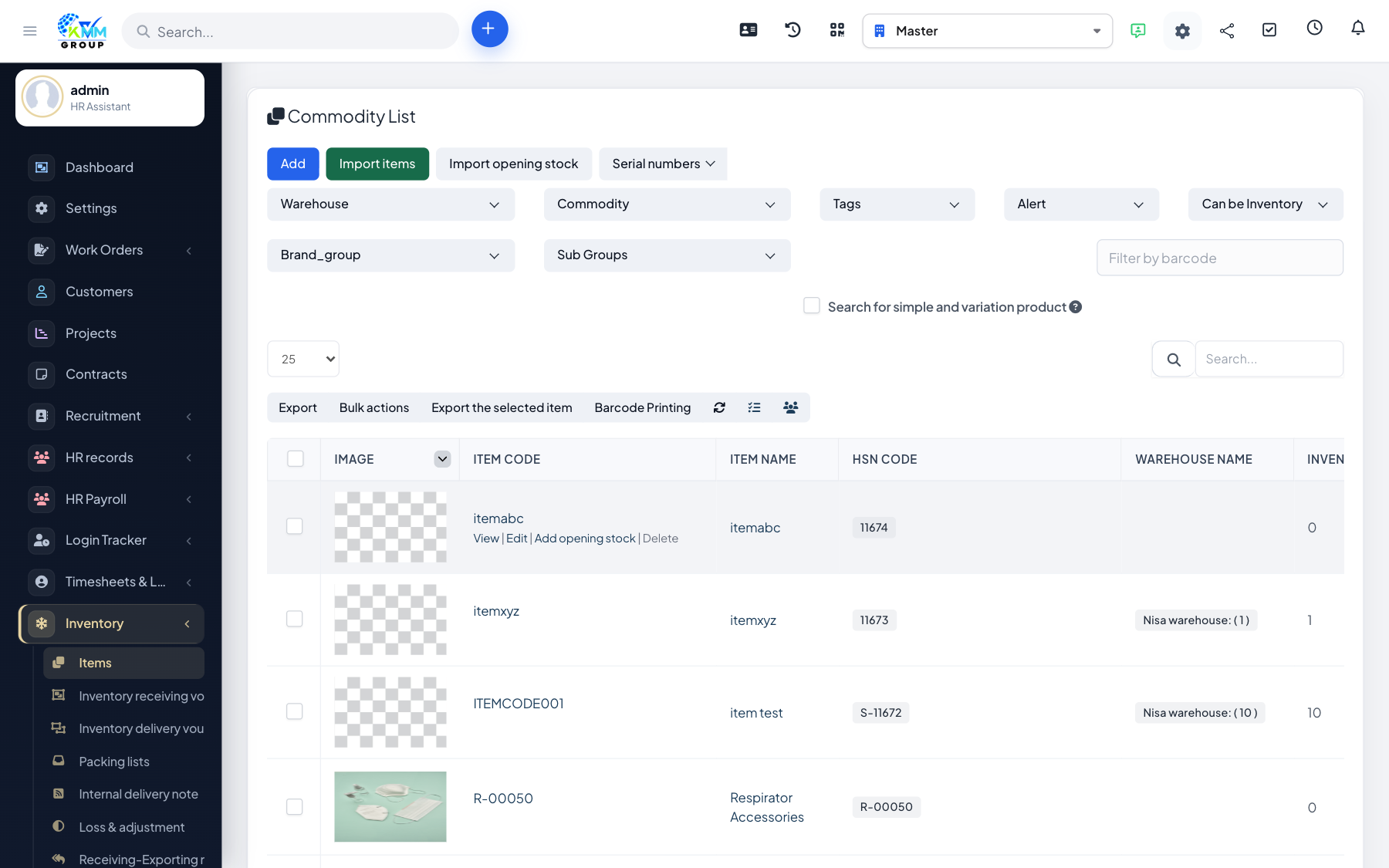
If you have a product list in a spreadsheet, importing creates many items at once instead of adding them one by one.
Steps
- On the Items screen, choose Import.
- Download the sample file so your columns match what the system expects.
- Complete the item rows (name, unit, group, sub group, price) and upload the file.
- Rows are validated against your settings; errors are reported so you can fix them.
- Correct any flagged rows and re-upload; valid rows become items automatically.
Tips
- Make sure the groups/sub groups in your file already exist in Settings, or the rows will fail.