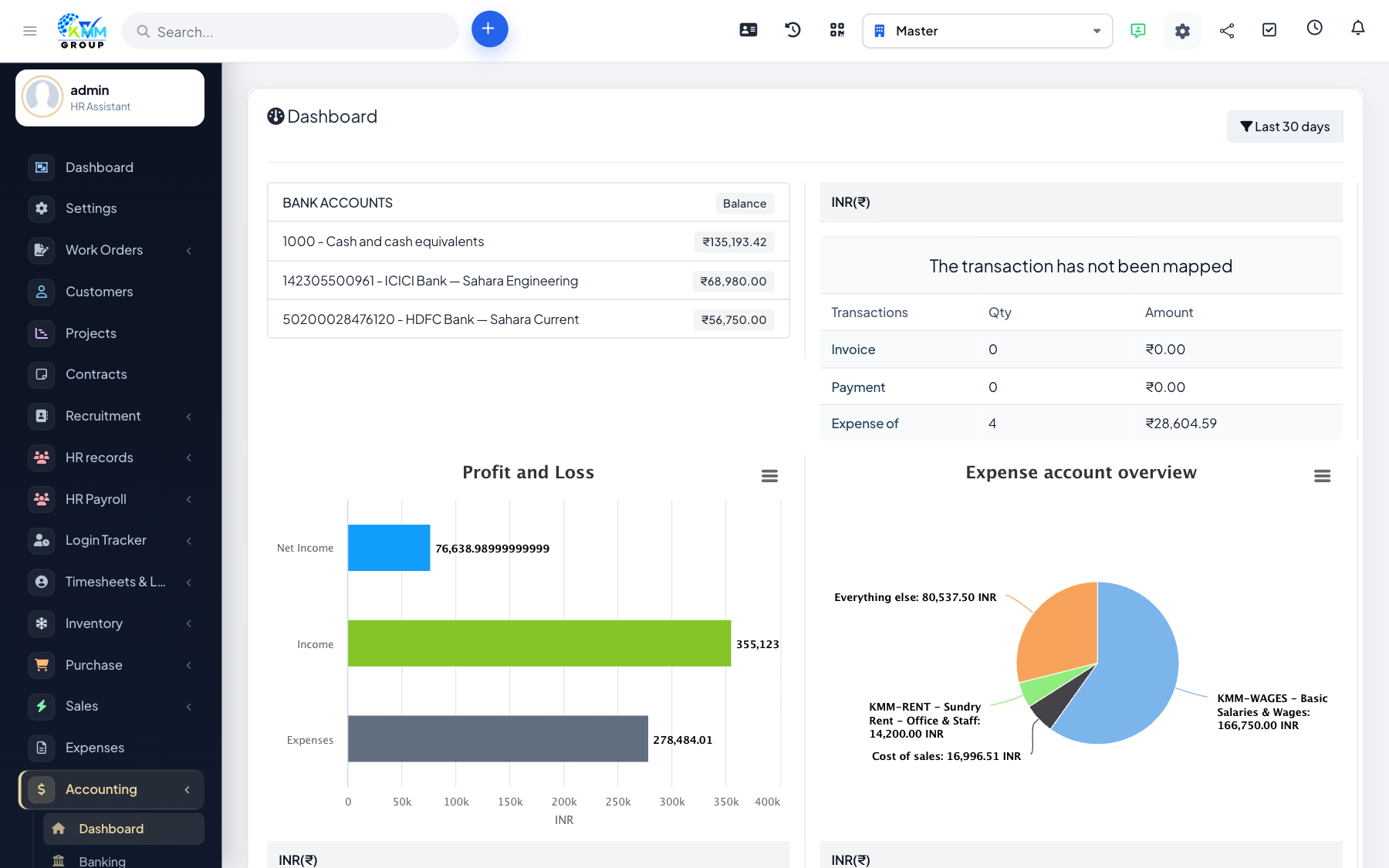
Banking area
The Banking section (https://dashboard.kmmvgroup.org/admin/accounting/banking) tracks all cash and bank activity.
Step-by-step: add a bank account
- Go to Accounting > Banking > Bank Accounts.
- Click New Bank Account.
- Enter the account name, opening balance and currency.
- Click Save.
Step-by-step: import a bank statement
- Go to Banking > Import Banking.
- Select the target bank account.
- Upload the statement as CSV or Excel.
- Map the columns (date, description, amount) and confirm.
- Imported rows appear under Posted Bank Transactions ready to be matched.
Bank feeds (Plaid)
If Plaid is configured under Settings > Plaid Environment, you can connect a bank under Banking > Banking Feeds to pull transactions automatically.